Monday, March 30, 2020

Sharing a cache in Adobe Bridge

Using Adobe Bridge as a means of archiving and accessing a digital asset library accessed by multiple users has always been a somewhat clunky affair. Each time the library was updated, users had to update their locally stored image cache.  Well, no more!

If you're using the latest version of Adobe Bridge you're in luck -- multiple users can now share caches which reduces lag time in accessing images and also reduces hard drive space on each machine. Just go to Tools>Cache>Manage Cache.

To learn all about sharing the cache in Bridge visit the Adobe website.

Note: for users of Adobe Bridge CC 2018 and earlier you're stuck with the old method. Sorry.


Sunday, March 29, 2020

Adobe Bridge new caching system

The caching system used by Adobe in its image asset manager Bridge is the very heart of the program. If you don't understand it thoroughly you should, and if you do, well, now is the time to take a look at the changes they have made in the latest iteration of Bridge.

For me, one of the most disconcerting aspects of the latest version is its attempt to want to purge and/or optimize the cache. In older versions you had to do this manually, but now it can actually be set to perform the task regularly. And if you use Bridge to archive lots of photos this could spell real trouble. Unless, of course, you have have the latest version of Bridge which allows you to export/share/import caches.

You find the cache details in Preferences: Bridge>Preferences>Cache. That should also give you the precise location of the cache file(s) on your machine.

Anyway, be extra-careful and be sure to check out Adobe's website for more information on the cache, purging it and optimizing the cache in Bridge.

I'll deal with the new sharing cache feature in tomorrow's post.


Wednesday, April 13, 2016

Freelance now

Effective April 1 I ended my tenure at Johnson & Wales University as digital photo librarian. It was interesting and challenging to be sure and I met some fine folks along the way.

But if you're in need of advice or help in setting up and maintaining an image library using Bridge just give me a shout.

Happy trails!

Sunday, February 28, 2016

Export cache to Folders

OK, so the long and short of this feature of Adobe Bridge is, it works.  
Since I manage a library used by a couple of dozen users, I never use this feature since it can't be shared. But I recently upgraded my Windows machine to Bridge 6.2 and experienced a somewhat troubling when I went to index a copy of the image library I had on an external hard drive.

A few weeks back I uploaded a complete copy of our image library onto an external hard drive, which included nearly 300k of photos taking up some 1.8 tbs of space. I chose to index this external drive copy of the library using the "Prefer Embedded" rather than "Always High Quality” in generating the metadata t speed up the caching process and discovered soon after that the cache was gone, or rather it had not indexed properly. Either way, no search results were coming up.Whatever it was, I was faced with how to resolve this potentially disastrous issue.


 So, since I was using the copy of the library I had on an external drive I thought why not try the "Export Cache to Folders" feature? After all, I didn’t need to rebuild the cache on my local machine since I was the only one accessing the external drive.

I selected the Image Library at the topmost level and chose “Export Cache to Folders.” After about 36 hours it had completely built a cache file in each and every one of 164 folders. As a result, searching is quick and spot on. And I don’t have to rely on the nuances of Bridge’s own cache on the machine itself.

One caveat, though: I don’t know what the consequences would be if you moved the image library to a new drive. Would Bridge still read the cache in each folder? My guess is it shouldn’t make a difference and Adobe claims it should still work fine. Still, I’ll have to test that out, but using a much smaller and more manageable sample.

For the moment, however, if you’re the only one using your image library use the “Export Cache to Folders” feature.

Wednesday, February 10, 2016

Adobe Bridge Output module error

If you've updated Bridge to 6.2 on the Mac and are running Yosemite then you might receive the "I/O Error" when attempting to create a PDF.

If so, you will need to update your AOM (Adobe Output Module). You can find the necessary download link and instructions on Adobe's website or you can cut-and-past the url:

https://helpx.adobe.com/bridge/kb/install-output-module-bridge-cc.html

And voila!

Be well.

Thursday, January 28, 2016

Bridge encounters a problem reading the cache -- solution - 1/28/2016

OK, so a fresh install of the program did NOT help. The problem with Bridge was beginning to appear systemic. It was occurring whether connected to the network through VPN, to an external hard drive on my desk or when trying to access a folder on my PC desktop.

Well, after some online research I think I might have found the solution: restore the program's factory settings. That is, reset the Preferences and purge the thumbnail cache.

According to Adobe you launch Bridge and IMMEDIATELY hold down the Command+Option+Shift (PC: Control+Alt+Shift) keys. A small dialogue box will appear:

Check the two boxes as shown and voila! You should be all set. A word of caution, though. This will, of course reset all your Preferences so you will have to tweak Bridge . and you'll have to reindex your image library, too. The word online is that this might happen with some frequency. We'll see.

Wednesday, January 27, 2016

Bridge encounters a problem reading the cache

OK, so right off I want to emphasize that this is a BIG and I mean very big PROBLEM. Aside from Bridge's painfully slow search feature - however robust it might -- the potential for a corrupt cache is very real, particularly for the archivist who is a heavy Bridge user.

You launch Bridge and when normally the program opens and stabilizes you see it stall out as it "builds criteria" even though you've selected nothing. That means its trying to access the cache of the interface itself and having a damn hard time doing it.

Then you get the dreaded message: "Bridge encountered a problem reading the cache. Please purge the central cache."

Oh no.

That means all the indexing you've done has to be trashed and you need to start all over again. Which also means that you are unable to search your image library in the process. That's not good.

Well, this has happened to me a number of times over the years and it's never pretty. While you can't prevent this from happening you can anticipate that it will and work around it.

How?

Always have the image library indexed on at least two machines. That's what I do and if you're using Bridge to manage an image library you should, too.


Thursday, July 23, 2015

Adobe Bridge slows to a crawl when working on a network via VPN

If you’ve ever tried to use Adobe Bridge over VPN (virtual private network) you might have found yourself tearing your hair out as you wait and wait and wait for folders to open, thumbnails to load (don’t even think previews) and metadata to pop up.

Well that’s exactly what has happened to me recently when I found myself managing our university image library remotely.: Upload and download speeds were dramatically and drastically reduced as well. Not surprisingly, though, once all the folders were indexed the first time, search results seemed accurate and fairly quick in return, which should be expected since the metadata is stored on the computer.

After conferring with the network folks in our IT department, I now believe that Adobe Bridge does not work well with VPN, at least not with Junos’s Pulse (Juniper Networks). I can’t confirm this, of course, but that seems to be a good guess for the moment. Has anyone else had this problem? A quick Google of the issue turned up little recent discussion so maybe I’m out here pretty much alone.

Does anyone have insight here?

Friday, February 20, 2015

"The network path is not found"

If you're using an external source, be it a drive or a network, to access your image library. you might see this annoying error message when re-indexing a folder:

The [drive/network] is not accessible. The network path is not found."

Try this to resolve it: Test the folder several times. If the error message continues, just select the folder, got to Tools>Cache?purge cache for [folder name] selection and voila!

Saturday, March 8, 2014

Adobe Bridge - update on our image library

It's been several months since I've posted here, and frankly little has changed except for the size of our image library. The university has more than 205,000 photos representing some 1.75tb of space on our network. Twenty people can access the library, most on Macs. But several using Windows 7.

We've had no major failures or issues accessing the library, although I still continue to have the occasional error message when trying to modify the metadata on images. Usually it just affects one or two photos, though. I hav no hard science to back up this next claim but my PC seems to be more sluggish in accessing the library than my Mac. Go figure.

Anyway, search speed is always the key variable and typically it's going to be slower the more files you have and the more spread out the network (we also use a DFS to ease the burden on our infrastructure).

Still, I've seen no unusual anomalies in search results; they seem accurate across most machines.

So far, so good.

Tuesday, July 9, 2013

Bridge references acting oddly on my PC

I'm using Bridge CS5.1 (part of CS5.5), on a Windows 7 HP. Some weeks back I first began to notice that I had to reset my preferences every time I launched Bridge.

So, I tried tossing the Preferences file (using a google recommendation) but that didn't work.

Next, I had our IT department completely reinstall CS5.5, including Bridge, but that didn't see to work either. 

One other thing, perhaps unrelated, but my cache remained untouched. I thought that odd only because when we've reinstalled in the past, I had to completely reindex the library. That does not seem to be the issue with this latest reinstall.

Any thoughts?

Wednesday, June 26, 2013

Corrupted Preferences in Bridge? Try this and let me know if it works!

If you find your cache has become corrupted or otherwise unresponsive or damaged, Adobe's fix is pretty straightforward: go to Preferences and simply purge the cache.  (Of course, you'll have to reindex all your folders/filers.)

But if you find your Preferences themselves have become corrupted, it's a bit more challenging to find a solution to "reset" your preferences to the factory defaults. Here's what you do:
  1. Quite Bridge 
  2. Relaunch the program
  3. Immediately hold down Control-Alt-Shift (PC) or
  4. Command-Option-Shift (note if this doesn't work and for older versions of the Mac OS
I have to say, though, this did NOT work for me -- I suspect I would have to reinstall Bridge at some point. But that would mean a total reindex of our image library. I think not.

I'd be curious to know if this works for anyone else.

Friday, April 12, 2013

Fuji X100s

Two weeks ago I took delivery of my brand-new X100s and I was well-prepared. I had already purchased the Kaza combo, half-case, strap and full case cover ($129), a thumb rest from Lensmate ($50), Tom Abrahamsson soft release ($21) and Giottos monitor cover ($25), and they were waiting patiently boxed until the camera arrived.

So, now they're on the camera, how do they stack up and are they worth the additional cost?

Thumb rest from Lensmate: Love it; works like a charm and definitely makes my grip on the camera feel more stable and solid. Note it will take up the hot shoe slot, though.


Soft release from Abrahamsson: Loved it and really like the sense of control over the shutter; but it came unscrewed shortly after I started using it and, unbeknownst to me, fell three stories (I was shooting from an old wrought iron fire escape at the time).  I'll  probably go with a less expensive model (and buy two or three just in case).


Kaza combo case system: Looks very nice, stitching looks even and well done, and feels good in the hand. One of the attractions of this case was ease of access to the battery/card slot cover, although it's a bit tight and I have to fiddle to get it to open.


There is good access to the Focus Mode Selector:


Although a bit finicky to get into place, the tripod screw works fine.

There are a few caveats to this case, however. The full case cover will not close with the thumb rest on and certainly not with both thumb rest and soft release. As a result, I tend not to use it and just leave the half-case on all the time.

Another thing, there is no way to access the connection ports since the half case covers it entirely (pictured immediately below).

The long and short of it is that I believe all these are worth the money; it's not a perfect world and when it comes to cameras one has to take a little finickiness in stride. (Hey how many of us bought the X100, right?)

Finally, I should add the two Fuji accessories: an extra battery (don't even think about using this camera without one) and the lens hood/adapter ring. I like the lens hood but you can't use the stock lens cap with it. It would also be nice if it didn't require a special ring to attach it.

Friday, March 15, 2013

Update your Camera Raw and DNG Converter

I'm a big believer of Adobe's DNG Converter to bring all the various proprietary camera raw file formas under one roof so to speak, so here's the link to the download of the latest and greatest, ver. 7.3. This should cover pretty much all new camera raw files.

If you prefer to cut-and-paste:

http://www.adobe.com/support/downloads/thankyou.jsp?ftpID=5518&fileID=5529

Thursday, February 21, 2013

Speed up your indexing in Bridge

If you find yourself having to reindex/recache an extremely large image library (like ours), here's a handy tip to get you back in search mode fast.
  1. Launch Bridge
  2. Make sure Path Bar is visible (if not, go to Window>Path Bar).
  3. On the right side of the Path Bar, just to the left of the Star rating drop-down menu are two square icons. These allow you to modify the thumbnail quality and preview generation in Bridge. 
  4. Select "Prefer Embedded (Faster)".
  5. Voila!
It might take a few moments when you select an image to generate a preview and if you find this too annoying you can change it back to "Always High Quality" or even  add "Generate 100% Previews" although this will consume lots more disk space and of course take more time in caching/indexing)

Tuesday, February 12, 2013

Handy introduction to using Adobe Bridge to organize your photos

I found this handy little video tutorial for using Bridge (CS6) as way to organize your photos. If you're looking for a tool to organize your image library it's worth the 13 or so minutes running time -- and it's free with Creative Suite, too, which is nice.


Monday, February 11, 2013

Bridge CS6 New Feature: showing InDesign Linked Files

A second tres cool feature of Bridge CS6 is its ability to show those often hard-to-locate linked InDesign files.

Just navigate to the folder where the IDD document is located and select the document. (You should see a little "link" icon in the upper right corner.) Now make sure you have checked to show "Linked Files" in Preferences and voila1 there's the file list.


OK, now right- or control-click on the IDD doc, and you should see the following dropdown:


Select "Show linked files":


Bingo! No matter which folder they're in, there they all are:


Finally, if you have checked the "Color Swatches" and "Font" panels in Metadata Preferences, and then select any IDD doc, you'll be able to see at a glance which fonts and what colors are use din the document itself -- another very nice feature:


Tuesday, February 5, 2013

Bridge CS6 New Feature: IPTC Extension Panel

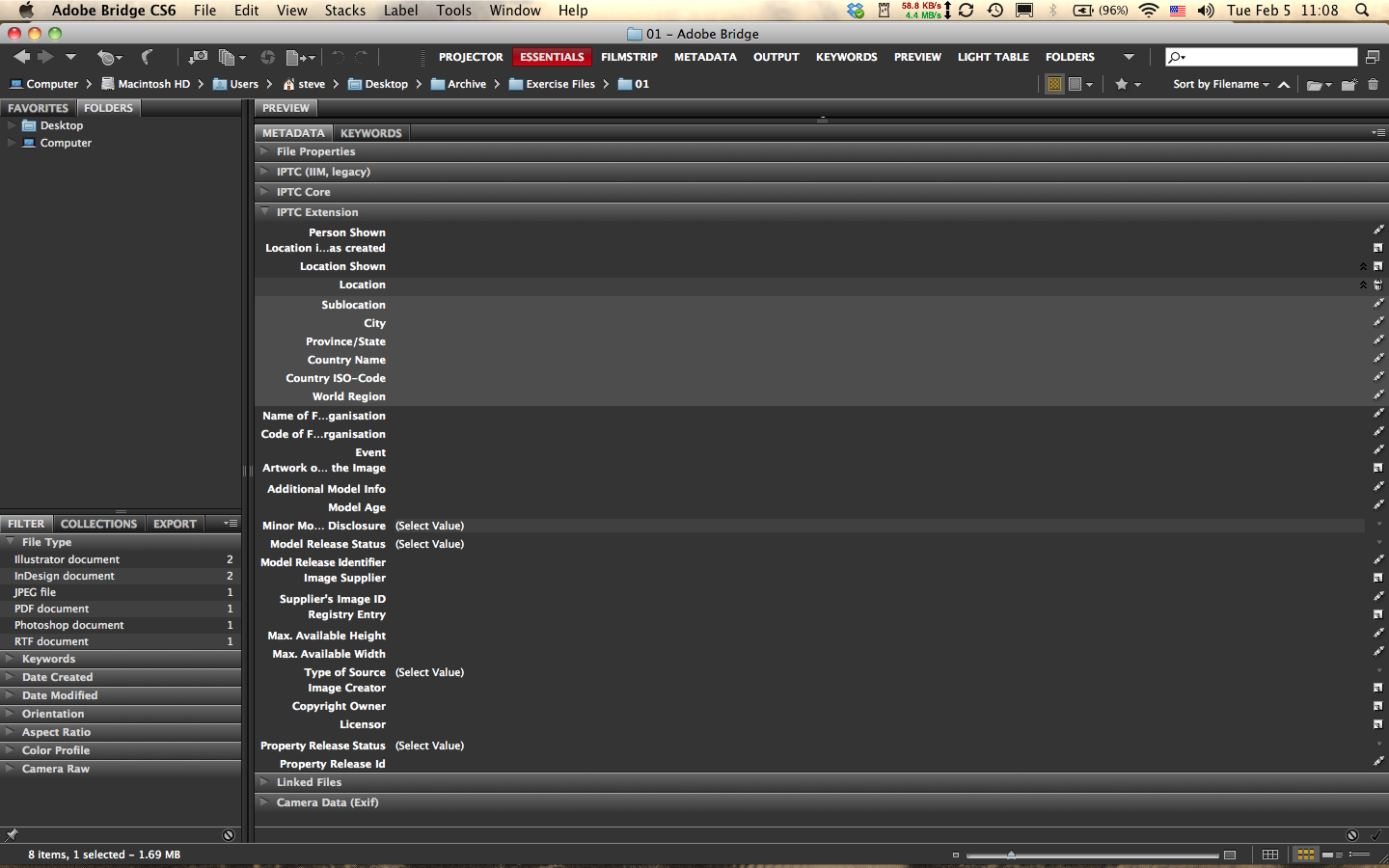
While little has changed between Bridge CS5 and 6, there are a couple of features in the latest iteration that will appeal to the serious archivist. The first is the new IPTC Extension Metadata Panel. Available as a download in CS5, this panel has now been fully integrated with the panel hierarchy in CS6. This new feature's importance is immediately obvious as soon as you open the panel (make sure it's checked in the Preferences): it adds a significant amount of data fields that will certainly appeal to professional photographers and image librarians.

Some of the fields can be expanded and even multiplied.

For example, in the image below I clicked the little "new page" icon on the far right side of the panel on the line "Location" and it added a set of subfields. The cool thing is I can click again and again and it will add additional fields. To delete one of the fields you added, simply click the trash icon. Voila!


Another interesting aspect of this new panel is the built-in dropdown menus for several data fields that have been increasingly important in the era of digital photography; fields such as

model age disclosure information:


model release status:


type of source:

and property release information (my favorite here):

Next: my second favorite new feature, a metadata panel for linking to InDesign files and a bonus!

Saturday, December 22, 2012

Need help navigating image archiving software?

I know we're supposed to be discussing Bridge here, but the simple fact is that many folks don't use Adobe products and yet still need to find a way to archive a large collection of image assets. More critically, perhaps, Bridge as we know all too well is a browser program and for truly effective image archiving we should be using a database program. (Money, money, money.)

So, if you're keen on finding just the right database program to organize your images, where to turn?

There are few resources today that provide a broad, up-to-date look at DB programs available to help you sort and archive images. One that I've recently discovered is an incredible print magazine called c't Digital Photography. affiliated with Rocky Nook Publications in the US, the magazine is in fact printed and published in Germany, and is also available in a cool app for the tablet. The magazine is in a large format, feels solid, looks professional, id in English and comes with a free cd of tutorial files and demo software (something that has pretty much gone away here in US magazines).

In the Fall 2012 issue (no. 9) one of the feature articles is called "Organize your Photos," and covers a wide assortment of database archiving software. Using tables, charts and wonderful illustrations, the article, deftly written by Sascha Steinhoff, discusses everything from "Database Basics" to "File Import and Management," and "All about Metadata."

The really important part of this very long article comes, of course, near the end: "Image Database Software Test Results," where the author nicely lays out in two easy-to-read tables, "Image Database Software for Network and Multi-User Environments" and another table for "Single-User Environments."

Finally, there is a page-by-page look at each of the major programs discussed, with key information and handy screen shots.

Anyway, I subscribe now. For more information check them out online. Oh, and their magazine app is tres cool.