- Launch Bridge
- Make sure Path Bar is visible (if not, go to Window>Path Bar).
- On the right side of the Path Bar, just to the left of the Star rating drop-down menu are two square icons. These allow you to modify the thumbnail quality and preview generation in Bridge.
- Select "Prefer Embedded (Faster)".
- Voila!
Thursday, February 21, 2013
Speed up your indexing in Bridge
If you find yourself having to reindex/recache an extremely large image library (like ours), here's a handy tip to get you back in search mode fast.


Tuesday, February 12, 2013
Handy introduction to using Adobe Bridge to organize your photos
I found this handy little video tutorial for using Bridge (CS6) as way to organize your photos. If you're looking for a tool to organize your image library it's worth the 13 or so minutes running time -- and it's free with Creative Suite, too, which is nice.
Monday, February 11, 2013
Bridge CS6 New Feature: showing InDesign Linked Files
A second tres cool feature of Bridge CS6 is its ability to show those often hard-to-locate linked InDesign files.
Just navigate to the folder where the IDD document is located and select the document. (You should see a little "link" icon in the upper right corner.) Now make sure you have checked to show "Linked Files" in Preferences and voila1 there's the file list.

OK, now right- or control-click on the IDD doc, and you should see the following dropdown:

Select "Show linked files":


Just navigate to the folder where the IDD document is located and select the document. (You should see a little "link" icon in the upper right corner.) Now make sure you have checked to show "Linked Files" in Preferences and voila1 there's the file list.

OK, now right- or control-click on the IDD doc, and you should see the following dropdown:

Select "Show linked files":

Bingo! No matter which folder they're in, there they all are:

Finally, if you have checked the "Color Swatches" and "Font" panels in Metadata Preferences, and then select any IDD doc, you'll be able to see at a glance which fonts and what colors are use din the document itself -- another very nice feature:

Tuesday, February 5, 2013
Bridge CS6 New Feature: IPTC Extension Panel
While little has changed between Bridge CS5 and 6, there are a couple of features in the latest iteration that will appeal to the serious archivist. The first is the new IPTC Extension Metadata Panel. Available as a download in CS5, this panel has now been fully integrated with the panel hierarchy in CS6. This new feature's importance is immediately obvious as soon as you open the panel (make sure it's checked in the Preferences): it adds a significant amount of data fields that will certainly appeal to professional photographers and image librarians.
Some of the fields can be expanded and even multiplied.
For example, in the image below I clicked the little "new page" icon on the far right side of the panel on the line "Location" and it added a set of subfields. The cool thing is I can click again and again and it will add additional fields. To delete one of the fields you added, simply click the trash icon. Voila!
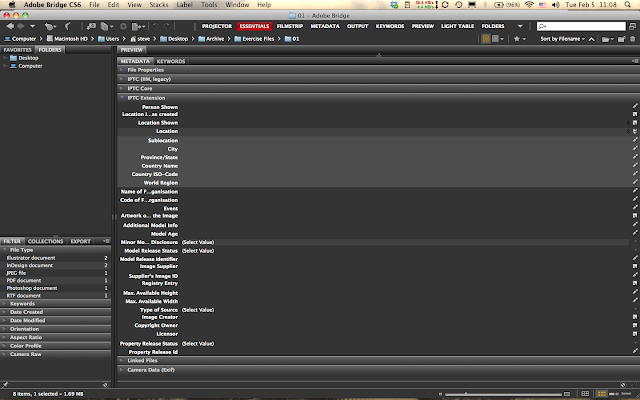
Another interesting aspect of this new panel is the built-in dropdown menus for several data fields that have been increasingly important in the era of digital photography; fields such as
model age disclosure information:

model release status:


Next: my second favorite new feature, a metadata panel for linking to InDesign files and a bonus!
Some of the fields can be expanded and even multiplied.
For example, in the image below I clicked the little "new page" icon on the far right side of the panel on the line "Location" and it added a set of subfields. The cool thing is I can click again and again and it will add additional fields. To delete one of the fields you added, simply click the trash icon. Voila!
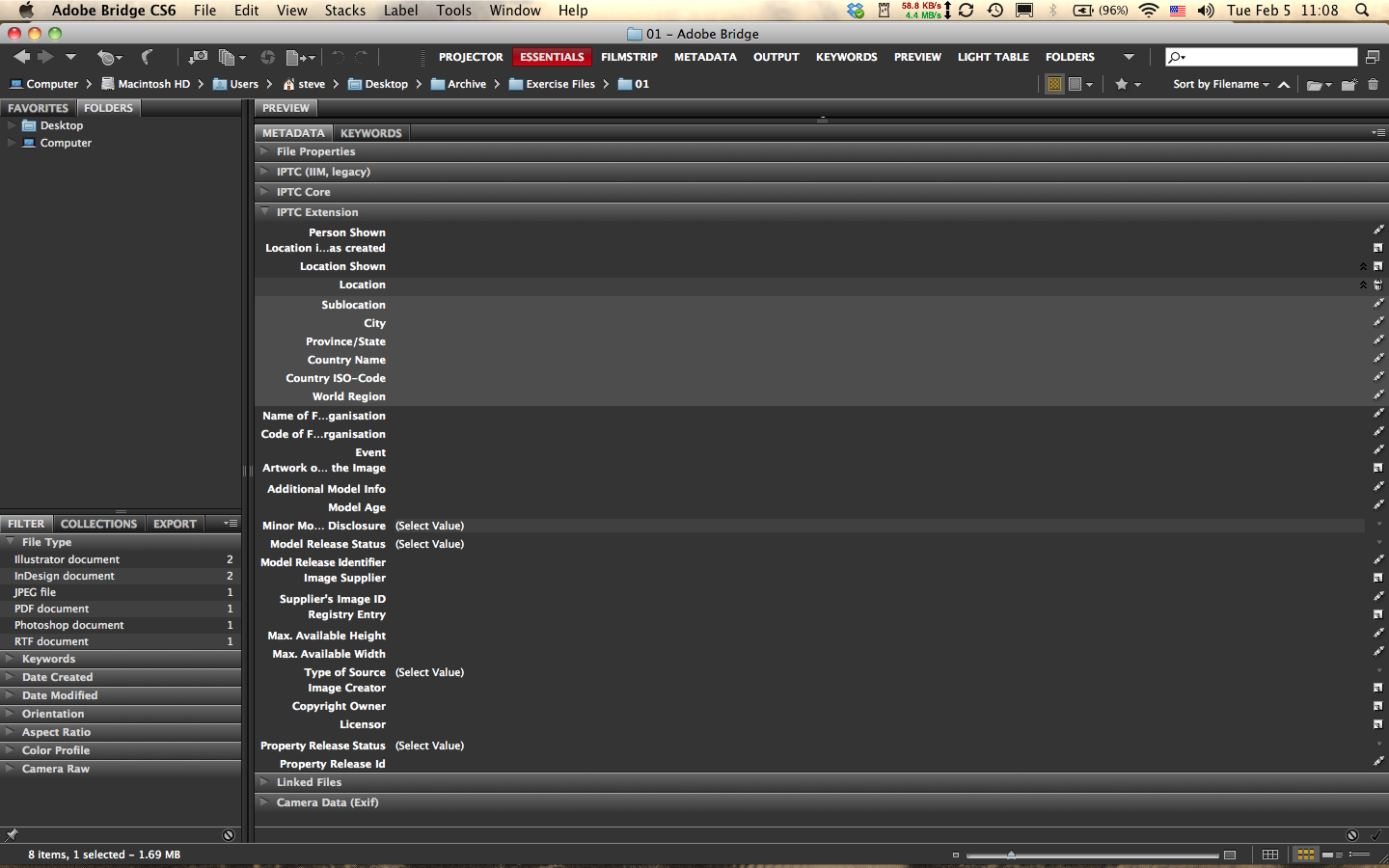
model age disclosure information:


type of source:

and property release information (my favorite here):

Next: my second favorite new feature, a metadata panel for linking to InDesign files and a bonus!
Saturday, December 22, 2012
Need help navigating image archiving software?
I know we're supposed to be discussing Bridge here, but the simple fact is that many folks don't use Adobe products and yet still need to find a way to archive a large collection of image assets. More critically, perhaps, Bridge as we know all too well is a browser program and for truly effective image archiving we should be using a database program. (Money, money, money.)
So, if you're keen on finding just the right database program to organize your images, where to turn?
There are few resources today that provide a broad, up-to-date look at DB programs available to help you sort and archive images. One that I've recently discovered is an incredible print magazine called c't Digital Photography. affiliated with Rocky Nook Publications in the US, the magazine is in fact printed and published in Germany, and is also available in a cool app for the tablet. The magazine is in a large format, feels solid, looks professional, id in English and comes with a free cd of tutorial files and demo software (something that has pretty much gone away here in US magazines).
In the Fall 2012 issue (no. 9) one of the feature articles is called "Organize your Photos," and covers a wide assortment of database archiving software. Using tables, charts and wonderful illustrations, the article, deftly written by Sascha Steinhoff, discusses everything from "Database Basics" to "File Import and Management," and "All about Metadata."
The really important part of this very long article comes, of course, near the end: "Image Database Software Test Results," where the author nicely lays out in two easy-to-read tables, "Image Database Software for Network and Multi-User Environments" and another table for "Single-User Environments."
Finally, there is a page-by-page look at each of the major programs discussed, with key information and handy screen shots.
Anyway, I subscribe now. For more information check them out online. Oh, and their magazine app is tres cool.
So, if you're keen on finding just the right database program to organize your images, where to turn?
There are few resources today that provide a broad, up-to-date look at DB programs available to help you sort and archive images. One that I've recently discovered is an incredible print magazine called c't Digital Photography. affiliated with Rocky Nook Publications in the US, the magazine is in fact printed and published in Germany, and is also available in a cool app for the tablet. The magazine is in a large format, feels solid, looks professional, id in English and comes with a free cd of tutorial files and demo software (something that has pretty much gone away here in US magazines).
In the Fall 2012 issue (no. 9) one of the feature articles is called "Organize your Photos," and covers a wide assortment of database archiving software. Using tables, charts and wonderful illustrations, the article, deftly written by Sascha Steinhoff, discusses everything from "Database Basics" to "File Import and Management," and "All about Metadata."
The really important part of this very long article comes, of course, near the end: "Image Database Software Test Results," where the author nicely lays out in two easy-to-read tables, "Image Database Software for Network and Multi-User Environments" and another table for "Single-User Environments."
Finally, there is a page-by-page look at each of the major programs discussed, with key information and handy screen shots.
Anyway, I subscribe now. For more information check them out online. Oh, and their magazine app is tres cool.
Monday, December 17, 2012
Using Bridge CS6 - an update to my Guide to Using Bridge
Well, this isn't really an update because little has changed in Bridge with CS6. I recently "bit the bullet" and now subscribe to Adobe Creative Cloud, which gives me basically the entire Master Collection as well as 20 gigabytes of space on the cloud; all for one reasonably low monthly fee.
After testing the newest iteration of Bridge I can safely say that nothing warrants an update to my print guide. The interface looks virtually the same and there are no new features.
But there is one thing worth noting in Photoshop CS6.
For the past several versions of CS, Photoshop has always had two small icons in the upper left portion of the main menu bar to allow the user to switch back to Bridge or MiniBridge with a simple click.
No more.
With CS6 you can only access Bridge from either the File menu or with a keyboard shortcut: "Option+Command+O." The same is true of MiniBridge, but no keyboard short, only a panel that can be docked.
Does this mean that Bridge is going away? One can only wonder. . .
Wednesday, November 21, 2012
Using Home Movie Depot and ScanCafe to transfer movies and tapes
This may be a bit off point but I'm going to post this anyway since I feel it bears some relevance to archiving photos.
I recently used Home Movie Depot to transfer old Hi-8 videotapes to a digital format that I can use to edit and archive along with my photos.
The online process was pretty simple: you choose the services you wish to purchase (in my case a straightforward video-digital transfer), make your payment and then ship the tapes off. That's it. They return the original media with the DVDs.
The turnaround time was impressive: in less than two weeks I had my original tapes and the new DVDs. Unfortunately, I discovered that half of the movies suffered from out-of-synch video and sound. I attempted to contact Home Movie Depot and it took a week before I could get through to someone in customer support.
The woman I spoke with was honest with me: they had a problem with "a setting" used during the transfer process of numerous movies and if I would send back the discs and the tapes they would redo everything.
Which they did. And mailed the original tapes and discs back to me soon afterwards.
I have also used ScanCafe as a test run form work. The idea was to see how well they handled the transfer of a series of different formats, but particularly slides. I also included medium-format negatives and prints as well.
Straight off I should warn you it took more than 3 months to transfer less than a hundred items. And they outsource to Bangalore. And their customer service was often unresponsive and certainly difficult to track down.
I would say that you should use ScanCafe at your own risk.
I recently used Home Movie Depot to transfer old Hi-8 videotapes to a digital format that I can use to edit and archive along with my photos.
The online process was pretty simple: you choose the services you wish to purchase (in my case a straightforward video-digital transfer), make your payment and then ship the tapes off. That's it. They return the original media with the DVDs.
The turnaround time was impressive: in less than two weeks I had my original tapes and the new DVDs. Unfortunately, I discovered that half of the movies suffered from out-of-synch video and sound. I attempted to contact Home Movie Depot and it took a week before I could get through to someone in customer support.
The woman I spoke with was honest with me: they had a problem with "a setting" used during the transfer process of numerous movies and if I would send back the discs and the tapes they would redo everything.
Which they did. And mailed the original tapes and discs back to me soon afterwards.
I have also used ScanCafe as a test run form work. The idea was to see how well they handled the transfer of a series of different formats, but particularly slides. I also included medium-format negatives and prints as well.
Straight off I should warn you it took more than 3 months to transfer less than a hundred items. And they outsource to Bangalore. And their customer service was often unresponsive and certainly difficult to track down.
I would say that you should use ScanCafe at your own risk.
Subscribe to:
Posts (Atom)